> ## Documentation Index
> Fetch the complete documentation index at: https://docs.openreward.ai/llms.txt
> Use this file to discover all available pages before exploring further.
# Debugging Environments
> Tips and techniques for debugging your environments
## Viewing Logs
Your first stop when debugging production environments should be the **Deployments** tab on your environment's page. This shows the build history for your environment, including whether the build completed or failed.
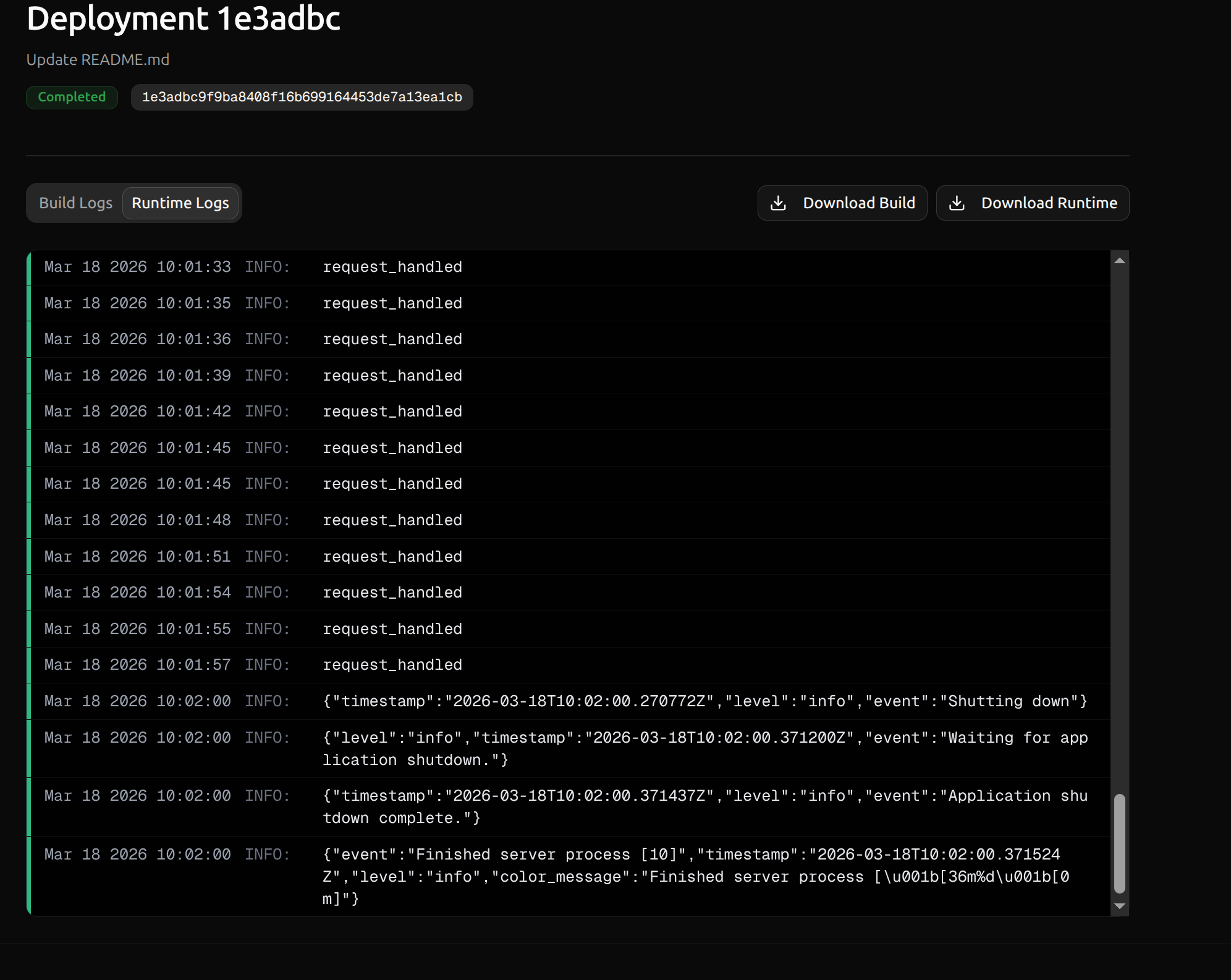
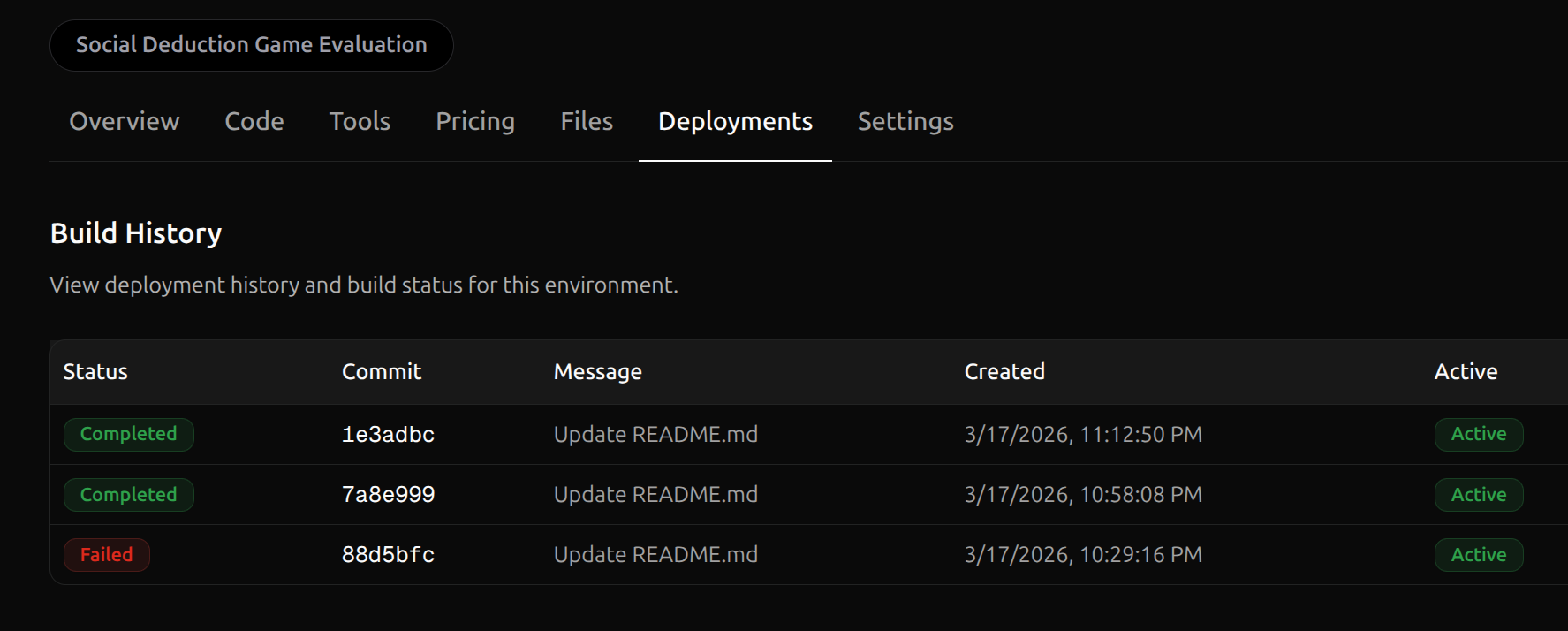 Click into a specific deployment row to access its logs. There are two types:
* **Build Logs** — If your deployment's status is **Failed**, check these first. They contain output from the Docker image build process and will show you exactly where the build broke.
* **Runtime Logs** — If your deployment built successfully but you can't access it or it's misbehaving, check these. They contain the live output from your running environment server.
Click into a specific deployment row to access its logs. There are two types:
* **Build Logs** — If your deployment's status is **Failed**, check these first. They contain output from the Docker image build process and will show you exactly where the build broke.
* **Runtime Logs** — If your deployment built successfully but you can't access it or it's misbehaving, check these. They contain the live output from your running environment server.
 ## Common Errors
### Data in the wrong location
If your environment works locally but fails after deploying, one common source of failure is how your data is referenced. Check for these two things:
1. **You didn't upload your data to OpenReward.** Locally, your files sit next to your code. In production, the environment server reads from `/orwd_data/`, which is populated from the **Files** tab on your environment's page. If you haven't uploaded your data there, the files simply won't exist at runtime.
2. **Your code points to the wrong path.** Even if your data is uploaded, hardcoded local paths like `Path(__file__).parent / "answers.json"` won't resolve to `/orwd_data/` in production. Use a path check so your code works in both contexts:
```python theme={null}
import json
import os
from pathlib import Path
if os.path.exists("/orwd_data"):
DATA_PATH = Path("/orwd_data")
else:
DATA_PATH = Path(__file__).parent
with open(DATA_PATH / "answers.json") as f:
answers = json.load(f)
```
See [Where Environment Data Lives](/environments/where-environment-data-lives) for the full explanation of how `/orwd_data/` works and how to structure your files.
### Out of memory (OOM) crashes
An error like this indicates your environment container was killed for exceeding its memory limit:
```
SessionTerminatedError: Session terminated: 503, message='Pod unavailable:
Container crashed (exit code 137). Check the environment's startup command
and configuration.'
```
Exit code 137 means the process was killed by the OS, typically due to OOM. Start by diagnosing where the memory pressure is coming from, then work through these options:
1. **Reduce memory usage in your environment code.** Look for places where you load large amounts of data into memory at once — for example, reading an entire parquet file with millions of rows. Load only what you need for the current task, or stream data instead of loading it all upfront.
2. **Avoid `list_tasks` with large task sets.** `list_tasks` loads every task into memory. If you have a large number of tasks, override `get_task` and `num_tasks` to use index-based access instead, so only one task is loaded at a time. See [Ways to Access Tasks](/environments/ways-to-access-tasks) for details.
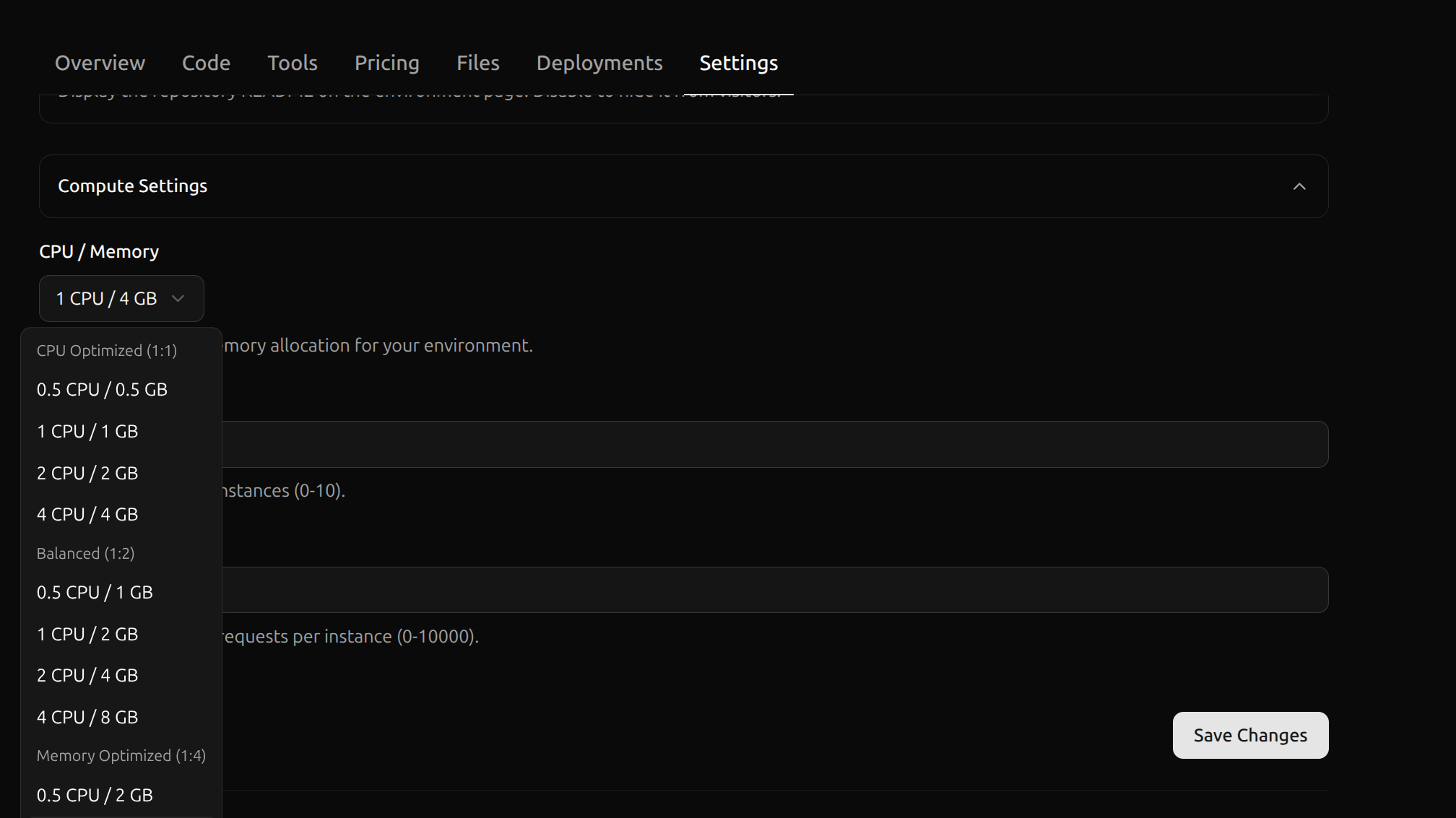
3. **Increase the memory allocation.** If your environment genuinely needs more RAM, you can increase it under **Settings > Compute Settings** on your environment's page.
## Common Errors
### Data in the wrong location
If your environment works locally but fails after deploying, one common source of failure is how your data is referenced. Check for these two things:
1. **You didn't upload your data to OpenReward.** Locally, your files sit next to your code. In production, the environment server reads from `/orwd_data/`, which is populated from the **Files** tab on your environment's page. If you haven't uploaded your data there, the files simply won't exist at runtime.
2. **Your code points to the wrong path.** Even if your data is uploaded, hardcoded local paths like `Path(__file__).parent / "answers.json"` won't resolve to `/orwd_data/` in production. Use a path check so your code works in both contexts:
```python theme={null}
import json
import os
from pathlib import Path
if os.path.exists("/orwd_data"):
DATA_PATH = Path("/orwd_data")
else:
DATA_PATH = Path(__file__).parent
with open(DATA_PATH / "answers.json") as f:
answers = json.load(f)
```
See [Where Environment Data Lives](/environments/where-environment-data-lives) for the full explanation of how `/orwd_data/` works and how to structure your files.
### Out of memory (OOM) crashes
An error like this indicates your environment container was killed for exceeding its memory limit:
```
SessionTerminatedError: Session terminated: 503, message='Pod unavailable:
Container crashed (exit code 137). Check the environment's startup command
and configuration.'
```
Exit code 137 means the process was killed by the OS, typically due to OOM. Start by diagnosing where the memory pressure is coming from, then work through these options:
1. **Reduce memory usage in your environment code.** Look for places where you load large amounts of data into memory at once — for example, reading an entire parquet file with millions of rows. Load only what you need for the current task, or stream data instead of loading it all upfront.
2. **Avoid `list_tasks` with large task sets.** `list_tasks` loads every task into memory. If you have a large number of tasks, override `get_task` and `num_tasks` to use index-based access instead, so only one task is loaded at a time. See [Ways to Access Tasks](/environments/ways-to-access-tasks) for details.
3. **Increase the memory allocation.** If your environment genuinely needs more RAM, you can increase it under **Settings > Compute Settings** on your environment's page.