> ## Documentation Index
> Fetch the complete documentation index at: https://docs.openreward.ai/llms.txt
> Use this file to discover all available pages before exploring further.
# Deploying Harbor Environments
> Deploy environments that use the Harbor task specification
## Goals
* Understand the [Harbor task specification](https://www.harborframework.com/docs) and how OpenReward supports it
* Deploy a Harbor environment from a GitHub repository
* Configure tasks using `task.toml`
* Monitor per-task image builds and debug failures
## Prerequisites
* An OpenReward [account](https://openreward.ai/) and [API key](https://openreward.ai/keys)
* A GitHub repository containing [Harbor](https://harborframework.com)-structured tasks
* Familiarity with [environments](/concepts/environments) and [GitHub deployment](/deployment/github-integration)
## What are Harbor environments?
[Harbor](https://www.harborframework.com/docs) is an open specification for defining agent tasks. Each task is a self-contained directory with an instruction, a container environment, and a verification script. Many benchmarks and evaluation suites publish their tasks in this format.
OpenReward has native support for the Harbor specification. When you mark an environment as a Harbor environment, OpenReward scans your connected GitHub repository for task directories, builds a Docker image for each task's sandbox, and generates the environment server code from the task definitions. You don't need to write a `server.py` or `Dockerfile` for the environment itself — OpenReward produces these from your Harbor tasks.
## Task directory structure
Each task in your repository must follow the Harbor layout:
```text theme={null}
my-task/
instruction.md # The prompt shown to the agent
task.toml # Task configuration (resources, timeouts, secrets)
tests/
test.sh # Verification script — determines reward
environment/
Dockerfile # Optional — sandbox image for this task
```
If a task has no `environment/Dockerfile` and no `docker_image` in `task.toml`, it defaults to `python:3.11-slim`.
You can scope the scan to a subdirectory of your repository. This is useful for monorepos where tasks live under a specific folder like `tasks/` or `benchmarks/`.
## Configuring tasks with task.toml
Each task's `task.toml` controls its sandbox resources, timeouts, and environment variables:
```toml theme={null}
split = "test" # "train", "test", or "validation"
[environment]
docker_image = "python:3.11" # Use a prebuilt image instead of building
cpus = 2
memory = "4G"
storage = "10G"
[environment.env]
MY_API_KEY = "${MY_API_KEY}" # Secret reference — see below
[agent]
timeout_sec = 1800
[verifier]
timeout_sec = 300
```
Resources are mapped to the nearest valid machine size. For example, 2 CPUs and 4 GB maps to machine size `"2:4"`.
### Secrets in task.toml
Values in `[environment.env]` or `[verifier.env]` wrapped in `${...}` are treated as secret references. During the build, OpenReward automatically detects these and populates the environment's secrets configuration with placeholder entries. You then fill in the actual values under **Settings > Secrets** on your environment's page.
See [Keeping Secrets Secret](/environments/keeping-secrets-secret) for more on managing secrets.
## Creating a Harbor environment
Go to [openreward.ai/new](https://openreward.ai/new) and enable the **Harbor Environment** toggle. Give the environment a name and create it.
 On your environment's page, click **Connect GitHub** and select the repository containing your Harbor tasks. If your tasks live in a subdirectory, specify it in the **Subdirectory** field.
Then configure your compute and scaling settings and click **Deploy**.
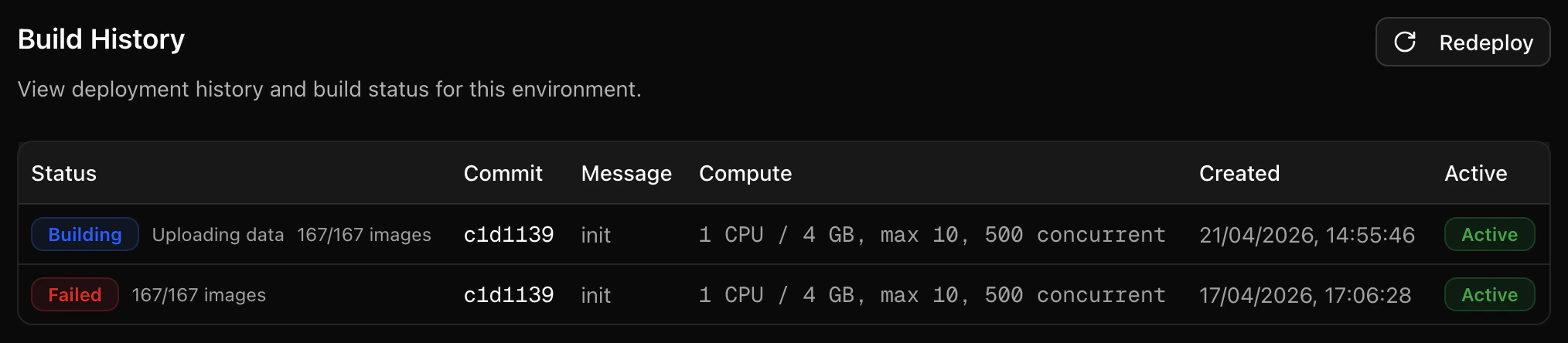
Harbor deployments go through four phases:
1. **Building task images** — OpenReward scans your repo, detects tasks, and submits a Docker build for each one. The **Deployments** tab shows a progress counter (e.g. "12/47 images").
2. **Uploading data** — Task instructions, test scripts, and metadata are uploaded.
3. **Building server** — The generated environment server image is built.
4. **Deployed** — The environment is live and ready to accept sessions.
On your environment's page, click **Connect GitHub** and select the repository containing your Harbor tasks. If your tasks live in a subdirectory, specify it in the **Subdirectory** field.
Then configure your compute and scaling settings and click **Deploy**.
Harbor deployments go through four phases:
1. **Building task images** — OpenReward scans your repo, detects tasks, and submits a Docker build for each one. The **Deployments** tab shows a progress counter (e.g. "12/47 images").
2. **Uploading data** — Task instructions, test scripts, and metadata are uploaded.
3. **Building server** — The generated environment server image is built.
4. **Deployed** — The environment is live and ready to accept sessions.
 Click into a deployment to see the **Task Images** tab. This shows every task detected in your repo with its build status. Click a task to expand its Cloud Build logs.
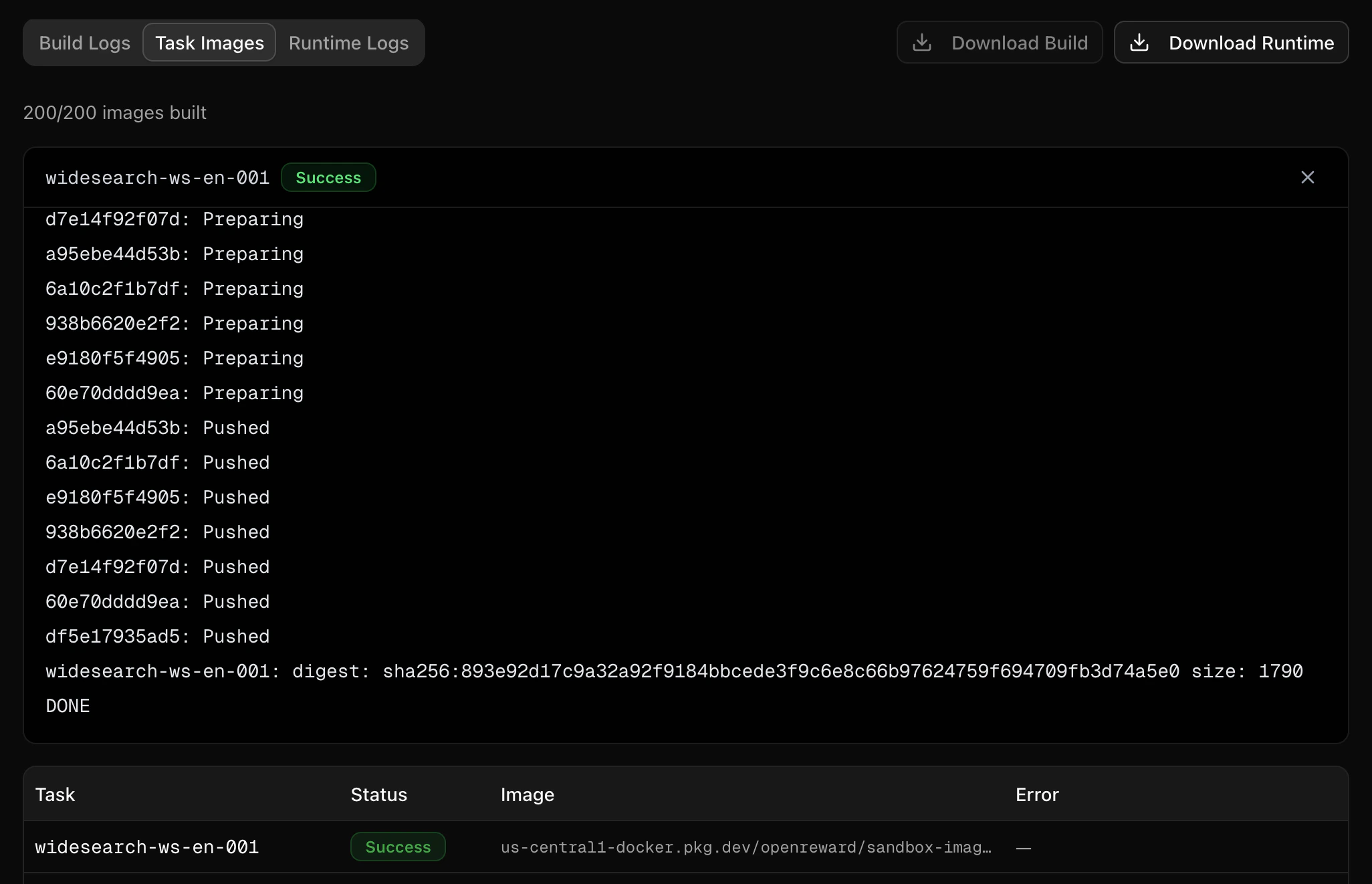 Tasks with a `docker_image` set in `task.toml` skip the build step entirely and show as successful immediately.
## Enabling Harbor on an existing environment
You can convert an existing environment to Harbor mode under **Settings** on your environment's manage page. Toggle **Harbor Environment** on and trigger a new deployment. OpenReward will scan the connected repository for Harbor tasks on the next build.
Tasks with a `docker_image` set in `task.toml` skip the build step entirely and show as successful immediately.
## Enabling Harbor on an existing environment
You can convert an existing environment to Harbor mode under **Settings** on your environment's manage page. Toggle **Harbor Environment** on and trigger a new deployment. OpenReward will scan the connected repository for Harbor tasks on the next build.
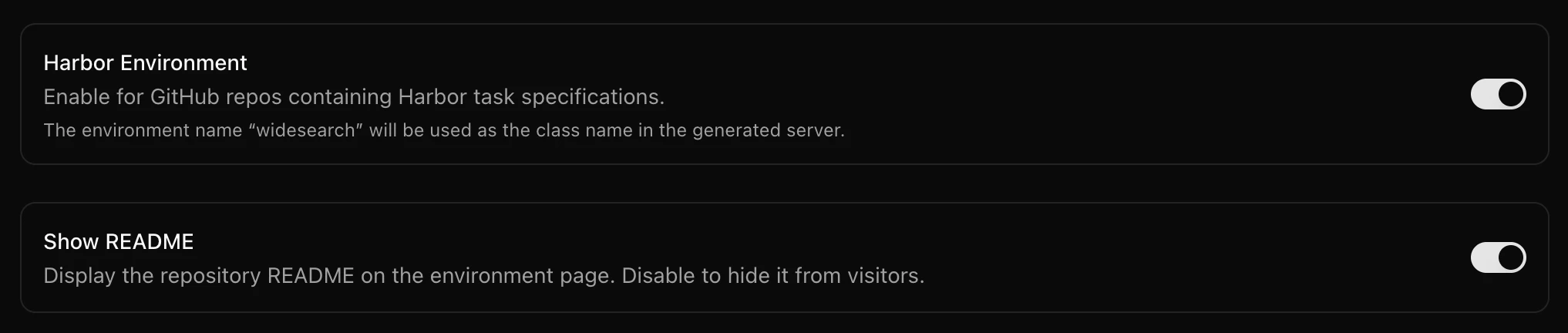 The environment name is used as the class name in the generated server code. Stick to alphanumeric names with hyphens or underscores.
## How verification works
When an agent calls `submit_answer`, the environment uploads the task's `tests/` directory into the sandbox and runs `tests/test.sh`. The reward is read from one of:
1. `/logs/verifier/reward.txt` — a plain float (e.g. `1.0`)
2. `/logs/verifier/reward.json` — a JSON object with a `reward` field
3. Pytest output — if neither file exists, the environment parses pytest results as a fallback
## Tools
Harbor environments include the [ClaudeCodeToolset](/harnesses/harness-toolsets#claudecodetoolset) at the class level, which provides `bash`, `glob`, `grep`, `read`, `write`, `edit`, and `todo_write`. The environment also exposes a `submit_answer` tool for running verification and returning the reward.
## Change detection
On subsequent deployments, OpenReward only rebuilds task images whose `environment/` directory has changed since the last successful build. Unchanged tasks reuse their previous image. This makes incremental deploys fast — even for repositories with hundreds of tasks.
## Debugging failed builds
If a deployment fails during the **Building task images** phase:
1. Go to the deployment's **Task Images** tab to see which tasks failed.
2. Expand a failed task to view its Cloud Build logs — these show the full Docker build output.
3. Common issues: missing dependencies in the Dockerfile, syntax errors in `test.sh`, or invalid `task.toml` configuration.
If the **Building server** phase fails, check the **Build Logs** tab. This is the same build log experience as a standard environment.
See [Debugging Environments](/environments/debugging-environments) for general debugging techniques.
## Next Steps
Convert Harbor tasks locally with the harbor2or CLI tool.
Learn more about connecting repositories and deployment flow.
Manage secrets referenced in your task.toml files.
The environment name is used as the class name in the generated server code. Stick to alphanumeric names with hyphens or underscores.
## How verification works
When an agent calls `submit_answer`, the environment uploads the task's `tests/` directory into the sandbox and runs `tests/test.sh`. The reward is read from one of:
1. `/logs/verifier/reward.txt` — a plain float (e.g. `1.0`)
2. `/logs/verifier/reward.json` — a JSON object with a `reward` field
3. Pytest output — if neither file exists, the environment parses pytest results as a fallback
## Tools
Harbor environments include the [ClaudeCodeToolset](/harnesses/harness-toolsets#claudecodetoolset) at the class level, which provides `bash`, `glob`, `grep`, `read`, `write`, `edit`, and `todo_write`. The environment also exposes a `submit_answer` tool for running verification and returning the reward.
## Change detection
On subsequent deployments, OpenReward only rebuilds task images whose `environment/` directory has changed since the last successful build. Unchanged tasks reuse their previous image. This makes incremental deploys fast — even for repositories with hundreds of tasks.
## Debugging failed builds
If a deployment fails during the **Building task images** phase:
1. Go to the deployment's **Task Images** tab to see which tasks failed.
2. Expand a failed task to view its Cloud Build logs — these show the full Docker build output.
3. Common issues: missing dependencies in the Dockerfile, syntax errors in `test.sh`, or invalid `task.toml` configuration.
If the **Building server** phase fails, check the **Build Logs** tab. This is the same build log experience as a standard environment.
See [Debugging Environments](/environments/debugging-environments) for general debugging techniques.
## Next Steps
Convert Harbor tasks locally with the harbor2or CLI tool.
Learn more about connecting repositories and deployment flow.
Manage secrets referenced in your task.toml files.