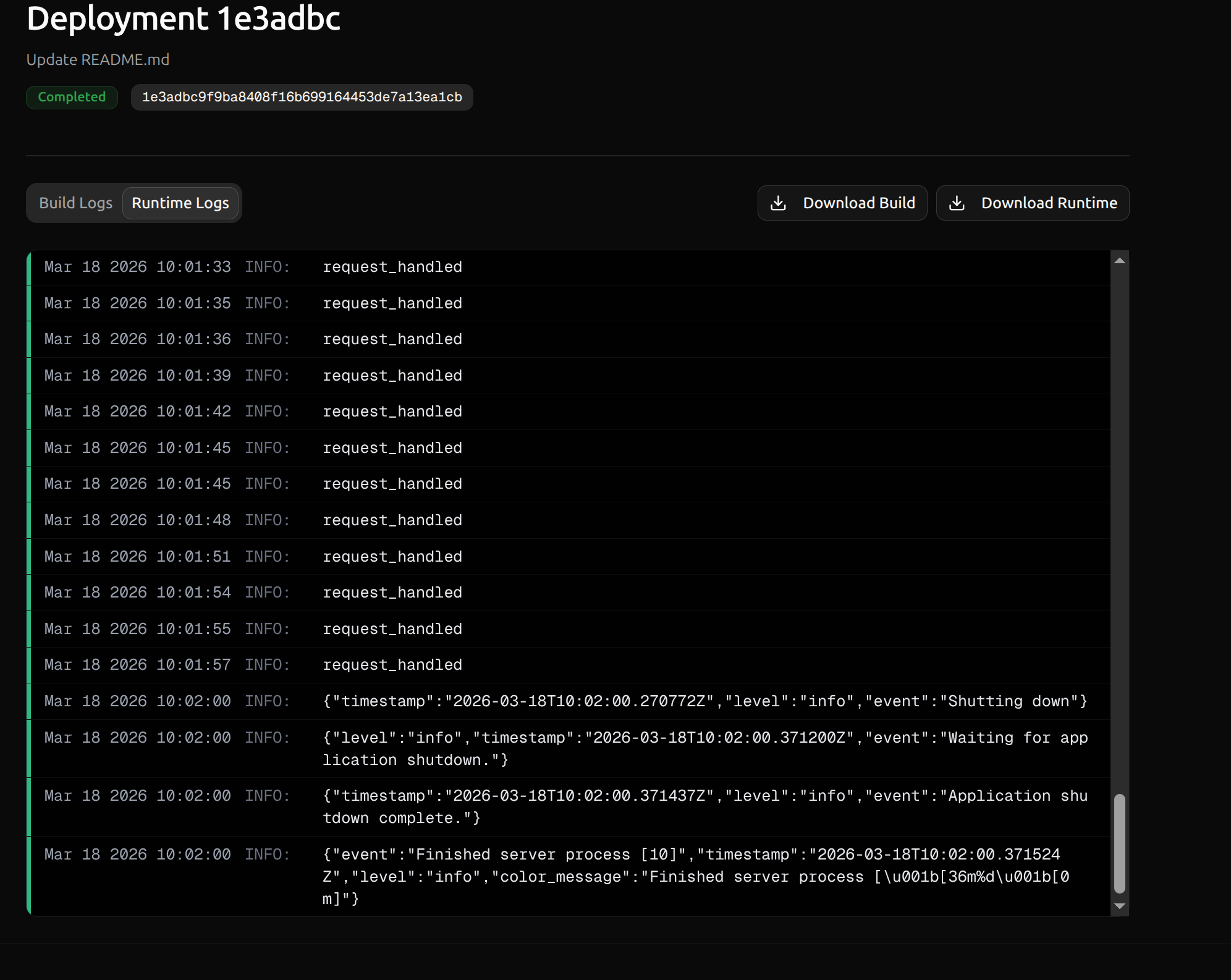
Viewing Logs
Your first stop when debugging production environments should be the Deployments tab on your environment’s page. This shows the build history for your environment, including whether the build completed or failed.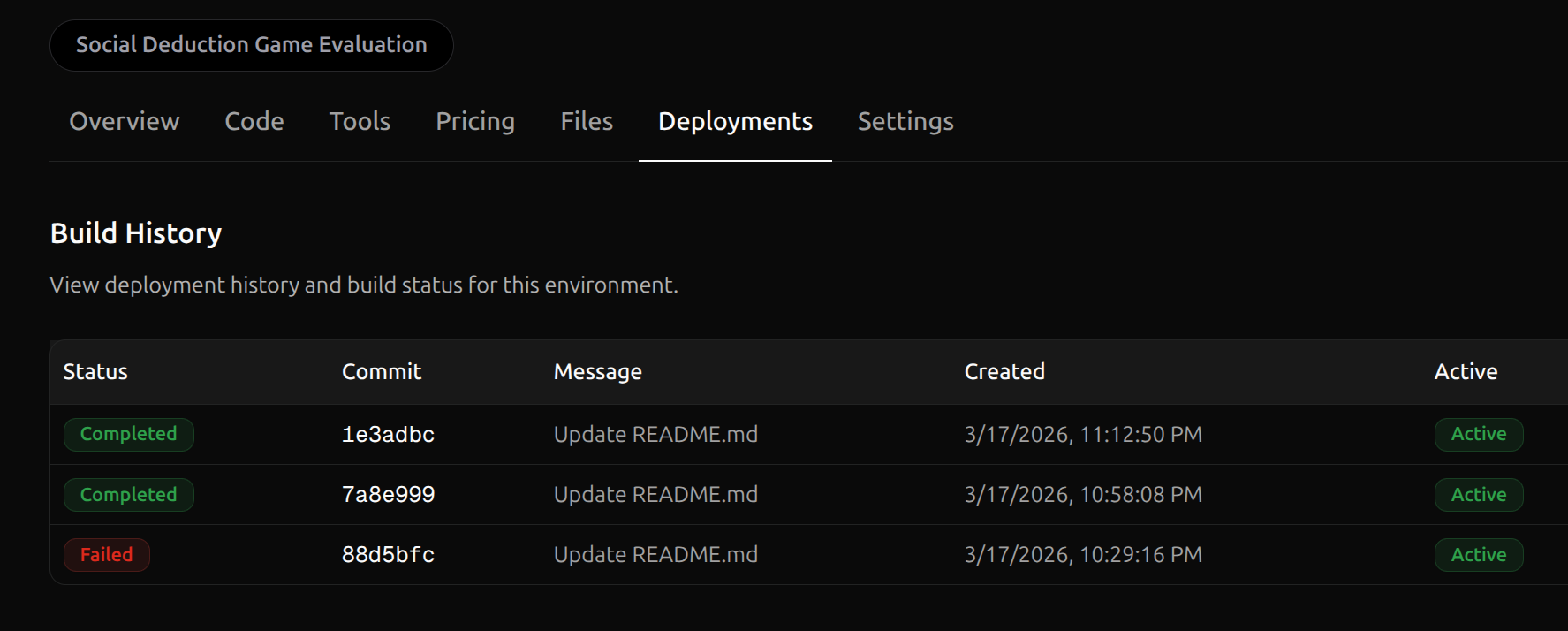
- Build Logs — If your deployment’s status is Failed, check these first. They contain output from the Docker image build process and will show you exactly where the build broke.
- Runtime Logs — If your deployment built successfully but you can’t access it or it’s misbehaving, check these. They contain the live output from your running environment server.
Common Errors
Data in the wrong location
If your environment works locally but fails after deploying, one common source of failure is how your data is referenced. Check for these two things:-
You didn’t upload your data to OpenReward. Locally, your files sit next to your code. In production, the environment server reads from
/orwd_data/, which is populated from the Files tab on your environment’s page. If you haven’t uploaded your data there, the files simply won’t exist at runtime. -
Your code points to the wrong path. Even if your data is uploaded, hardcoded local paths like
Path(__file__).parent / "answers.json"won’t resolve to/orwd_data/in production. Use a path check so your code works in both contexts:
/orwd_data/ works and how to structure your files.
Out of memory (OOM) crashes
An error like this indicates your environment container was killed for exceeding its memory limit:- Reduce memory usage in your environment code. Look for places where you load large amounts of data into memory at once — for example, reading an entire parquet file with millions of rows. Load only what you need for the current task, or stream data instead of loading it all upfront.
-
Avoid
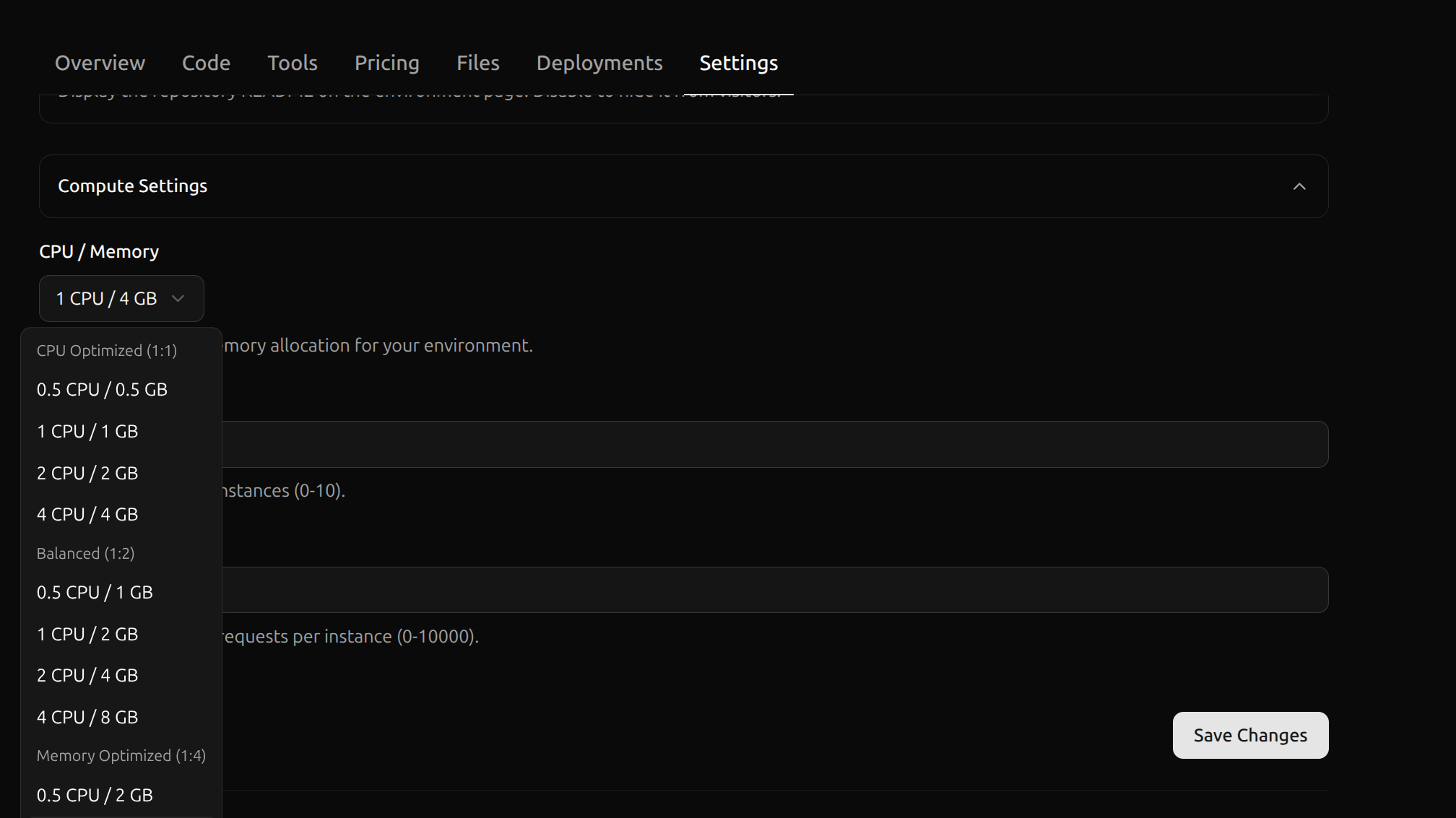
list_taskswith large task sets.list_tasksloads every task into memory. If you have a large number of tasks, overrideget_taskandnum_tasksto use index-based access instead, so only one task is loaded at a time. See Ways to Access Tasks for details. - Increase the memory allocation. If your environment genuinely needs more RAM, you can increase it under Settings > Compute Settings on your environment’s page.