

Goals
- Understand the Harbor task specification and how OpenReward supports it
- Deploy a Harbor environment from a GitHub repository
- Configure tasks using
task.toml - Monitor per-task image builds and debug failures
Prerequisites
- An OpenReward account and API key
- A GitHub repository containing Harbor-structured tasks
- Familiarity with environments and GitHub deployment
What are Harbor environments?
Harbor is an open specification for defining agent tasks. Each task is a self-contained directory with an instruction, a container environment, and a verification script. Many benchmarks and evaluation suites publish their tasks in this format. OpenReward has native support for the Harbor specification. When you mark an environment as a Harbor environment, OpenReward scans your connected GitHub repository for task directories, builds a Docker image for each task’s sandbox, and generates the environment server code from the task definitions. You don’t need to write aserver.py or Dockerfile for the environment itself — OpenReward produces these from your Harbor tasks.
Task directory structure
Each task in your repository must follow the Harbor layout:environment/Dockerfile and no docker_image in task.toml, it defaults to python:3.11-slim.
You can scope the scan to a subdirectory of your repository. This is useful for monorepos where tasks live under a specific folder like
tasks/ or benchmarks/.Configuring tasks with task.toml
Each task’stask.toml controls its sandbox resources, timeouts, and environment variables:
"2:4".
Secrets in task.toml
Values in[environment.env] or [verifier.env] wrapped in ${...} are treated as secret references. During the build, OpenReward automatically detects these and populates the environment’s secrets configuration with placeholder entries. You then fill in the actual values under Settings > Secrets on your environment’s page.
See Keeping Secrets Secret for more on managing secrets.
Creating a Harbor environment
1
Create the environment
Go to openreward.ai/new and enable the Harbor Environment toggle. Give the environment a name and create it.
2
Connect your GitHub repository
On your environment’s page, click Connect GitHub and select the repository containing your Harbor tasks. If your tasks live in a subdirectory, specify it in the Subdirectory field.Then configure your compute and scaling settings and click Deploy.
3
Monitor the build
Harbor deployments go through four phases: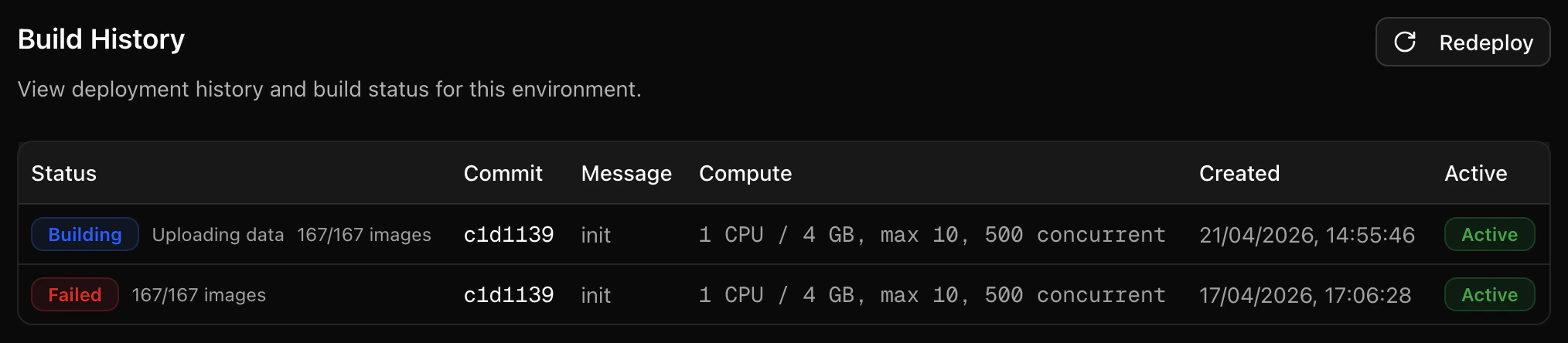
- Building task images — OpenReward scans your repo, detects tasks, and submits a Docker build for each one. The Deployments tab shows a progress counter (e.g. “12/47 images”).
- Uploading data — Task instructions, test scripts, and metadata are uploaded.
- Building server — The generated environment server image is built.
- Deployed — The environment is live and ready to accept sessions.
4
Inspect per-task builds
Click into a deployment to see the Task Images tab. This shows every task detected in your repo with its build status. Click a task to expand its Cloud Build logs.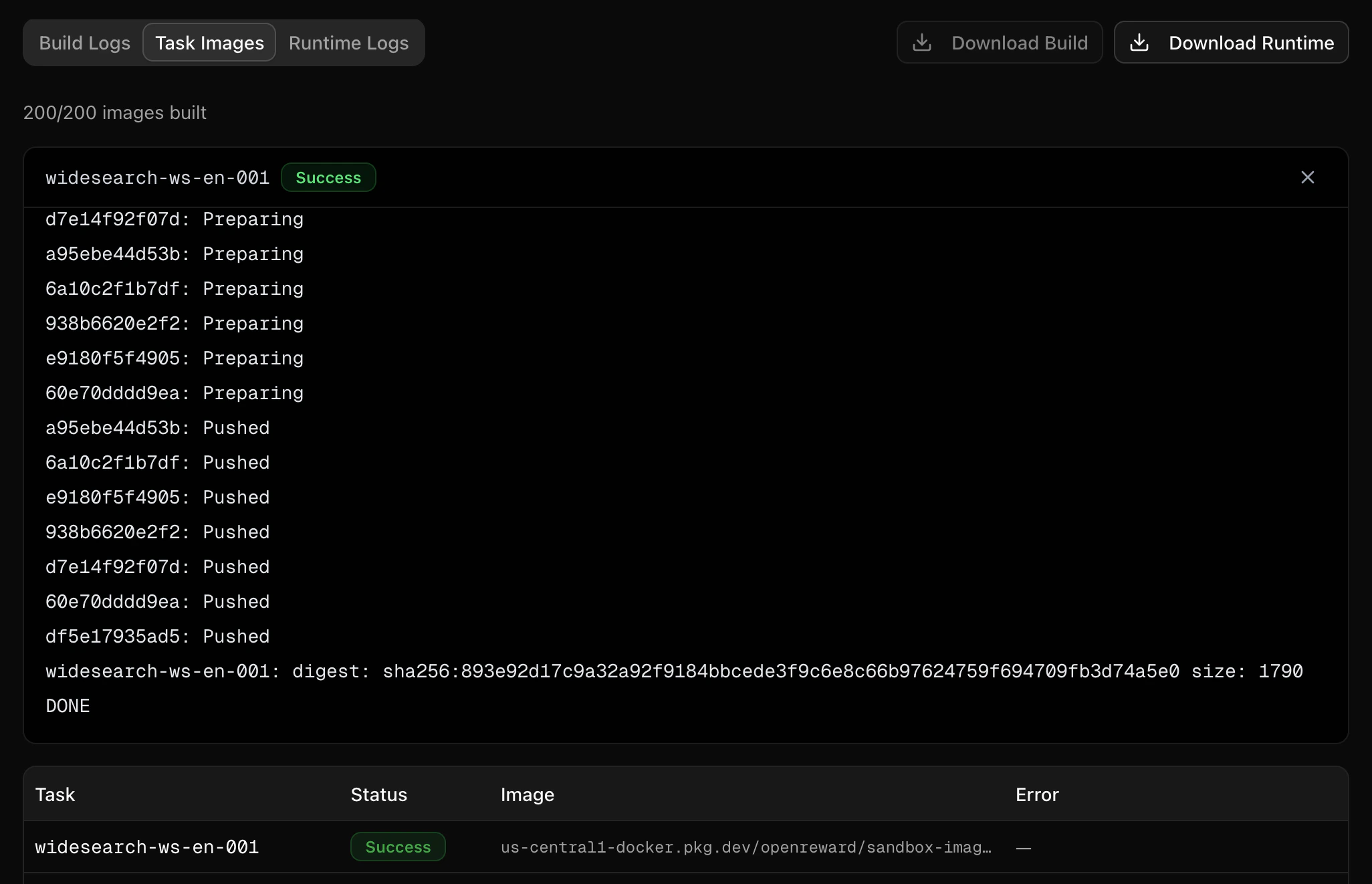
docker_image set in task.toml skip the build step entirely and show as successful immediately.Enabling Harbor on an existing environment
You can convert an existing environment to Harbor mode under Settings on your environment’s manage page. Toggle Harbor Environment on and trigger a new deployment. OpenReward will scan the connected repository for Harbor tasks on the next build.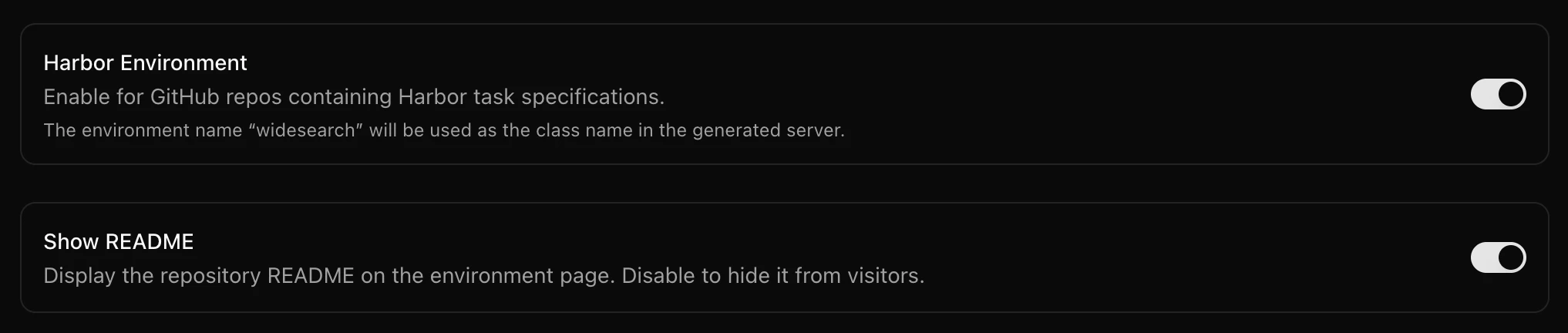
The environment name is used as the class name in the generated server code. Stick to alphanumeric names with hyphens or underscores.
How verification works
When an agent callssubmit_answer, the environment uploads the task’s tests/ directory into the sandbox and runs tests/test.sh. The reward is read from one of:
/logs/verifier/reward.txt— a plain float (e.g.1.0)/logs/verifier/reward.json— a JSON object with arewardfield- Pytest output — if neither file exists, the environment parses pytest results as a fallback
Tools
Harbor environments include the ClaudeCodeToolset at the class level, which providesbash, glob, grep, read, write, edit, and todo_write. The environment also exposes a submit_answer tool for running verification and returning the reward.
Change detection
On subsequent deployments, OpenReward only rebuilds task images whoseenvironment/ directory has changed since the last successful build. Unchanged tasks reuse their previous image. This makes incremental deploys fast — even for repositories with hundreds of tasks.
Debugging failed builds
If a deployment fails during the Building task images phase:- Go to the deployment’s Task Images tab to see which tasks failed.
- Expand a failed task to view its Cloud Build logs — these show the full Docker build output.
- Common issues: missing dependencies in the Dockerfile, syntax errors in
test.sh, or invalidtask.tomlconfiguration.
Next Steps
Using Harbor Environments
Convert Harbor tasks locally with the harbor2or CLI tool.
GitHub Deployment
Learn more about connecting repositories and deployment flow.
Keeping Secrets Secret
Manage secrets referenced in your task.toml files.